
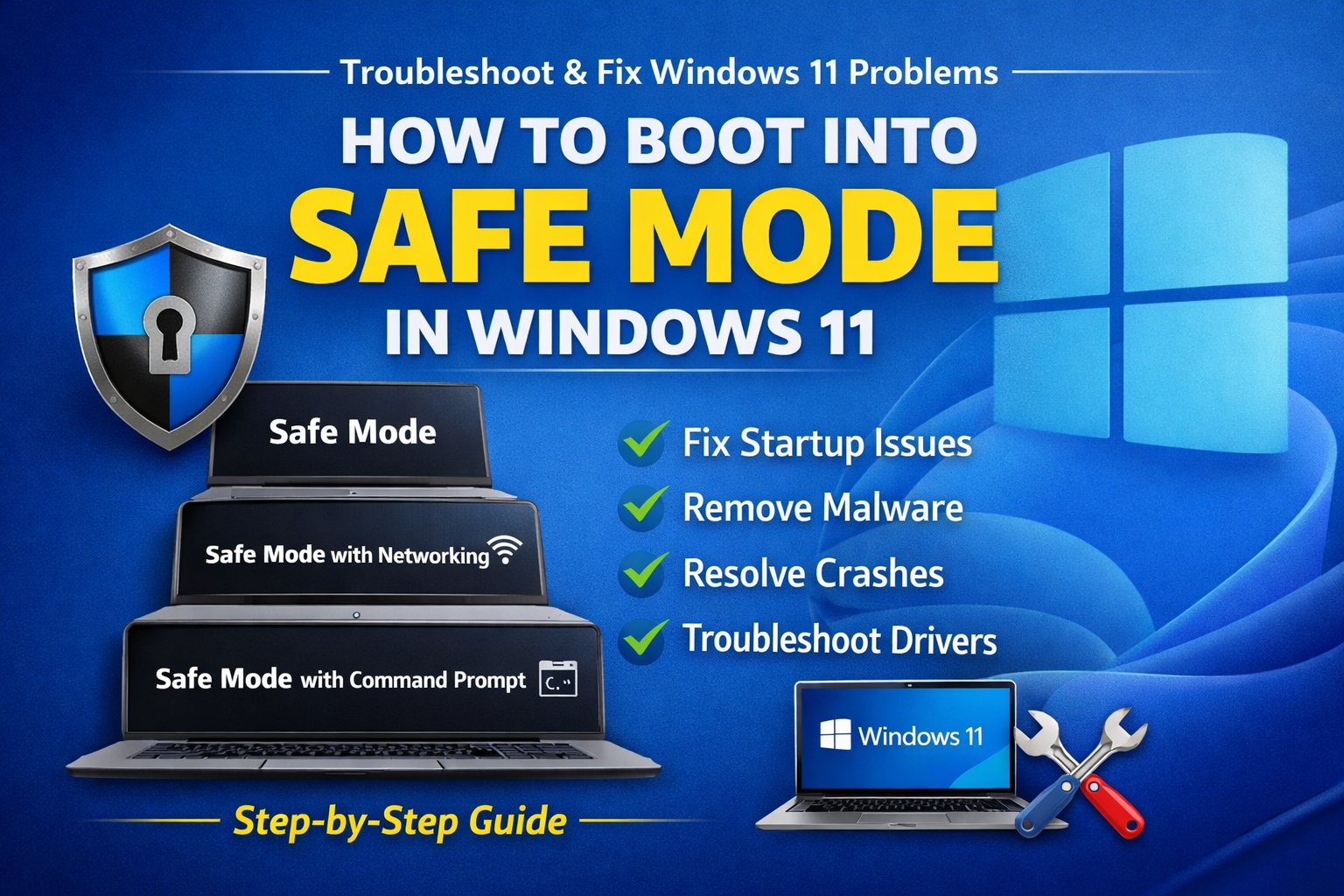
How to Boot Into Safe Mode in Windows 11 Complete 2026 Guide
If your computer is acting up—freezing, crashing, or running unusually slow—booting into Safe Mode in Windows 11 can be one of the most effective ways to troubleshoot and fix the problem. Safe Mode starts your system with only essential drivers and services, making it easier to diagnose issues caused by software conflicts, malware, or faulty drivers.
In this comprehensive guide, you’ll learn how to boot into Safe Mode in Windows 11, step-by-step, along with tips, troubleshooting methods, and expert insights to help you resolve common PC problems quickly and safely.
What Is Safe Mode in Windows 11?
Safe Mode is a diagnostic startup mode in Windows 11 that loads a minimal set of drivers and services. This stripped-down environment helps isolate issues that may prevent your system from functioning normally.
Types of Safe Mode:
- Safe Mode – Basic mode with essential drivers only
- Safe Mode with Networking – Includes internet access
- Safe Mode with Command Prompt – Advanced troubleshooting using commands
Why Use Safe Mode?
Booting into Safe Mode is useful for:
- Fixing Windows startup issues
- Removing malware or viruses
- Uninstalling problematic software or drivers
- Resolving blue screen errors (BSOD)
- Diagnosing system performance issues
Method 1: Boot Into Safe Mode via Settings (Recommended)
This is the easiest and most common method if your PC is still accessible.
Steps:
- Click the Start Menu
- Select Settings
- Go to System > Recovery
- Under Advanced Startup, click Restart now
- Your PC will restart to a blue screen
- Select:
- Troubleshoot
- Advanced options
- Startup Settings
- Click Restart
- Press:
- 4 for Safe Mode
- 5 for Safe Mode with Networking
- 6 for Safe Mode with Command Prompt
Method 2: Use the Power Menu Shortcut
If you need a quicker method:
Steps:
- Click the Start button
- Click the Power icon
- Hold down the Shift key
- Click Restart
- Follow the same steps:
- Troubleshoot → Advanced options → Startup Settings → Restart
Method 3: Boot Into Safe Mode from Sign-In Screen
If you can’t log in to Windows:
Steps:
- On the login screen, click the Power icon
- Hold Shift and click Restart
- Follow:
- Troubleshoot → Advanced options → Startup Settings → Restart
Method 4: Force Safe Mode (When Windows Won’t Start)
If your PC won’t boot properly, this method can help trigger recovery mode.
Steps:
- Turn on your PC
- As soon as Windows starts loading, hold the power button to force shutdown
- Repeat this process 2–3 times
- Windows will enter Automatic Repair mode
- Click:
- Advanced options
- Then follow Safe Mode steps
Method 5: Use System Configuration (MSConfig)
This method is useful if you want your PC to always boot into Safe Mode temporarily.
Steps:
- Press Windows + R
- Type
msconfigand press Enter - Go to the Boot tab
- Check Safe boot
- Select:
- Minimal (basic Safe Mode)
- Network (Safe Mode with internet)
- Click Apply → OK
- Restart your PC
⚠️ Important: After troubleshooting, go back and uncheck Safe Boot to return to normal mode.
How to Exit Safe Mode in Windows 11
To return to normal mode:
Option 1:
- Restart your computer normally
Option 2 (if stuck in Safe Mode):
- Open Run (Windows + R)
- Type
msconfig - Uncheck Safe boot
- Restart
Common Issues Fixed Using Safe Mode
Safe Mode is highly effective for resolving:
1. Slow Computer Performance
Disable unnecessary startup programs and services.
2. Malware Removal
Run antivirus scans without interference from malicious processes.
3. Driver Conflicts
Uninstall or roll back faulty drivers.
4. Blue Screen Errors (BSOD)
Identify problematic system files or hardware issues.
Safe Mode Not Working? Try These Fixes
If you can’t access Safe Mode, try:
- Using a Windows 11 bootable USB drive
- Running Startup Repair
- Performing a System Restore
- Resetting Windows (last resort)
Best Practices When Using Safe Mode
- Only make necessary changes
- Avoid installing new software unless required
- Always back up important files
- Use Safe Mode for troubleshooting, not regular use
Keywords
This article is optimized with high-ranking keywords such as:
- how to boot into safe mode windows 11
- safe mode windows 11 steps
- start windows 11 in safe mode
- windows 11 troubleshooting guide
- fix windows 11 startup problems
- advanced startup windows 11
- safe mode with networking windows 11
Conclusion
Knowing how to boot into Safe Mode in Windows 11 is an essential skill for anyone using a PC. Whether you’re dealing with stubborn software issues, malware infections, or system crashes, Safe Mode gives you a clean and controlled environment to diagnose and fix problems effectively.
By following the methods outlined above, you can confidently troubleshoot your system and restore it to optimal performance without unnecessary stress.
Frequently Asked Questions (FAQs)
1. Is Safe Mode safe to use?
Yes, Safe Mode is completely safe and designed for troubleshooting.
2. Can I access the internet in Safe Mode?
Yes, if you choose Safe Mode with Networking.
3. Will Safe Mode delete my files?
No, it does not affect your personal files.
4. Why is my PC stuck in Safe Mode?
You may have enabled Safe Boot in MSConfig. Disable it to exit.


