
How to Check CPU Temperature in Windows 11
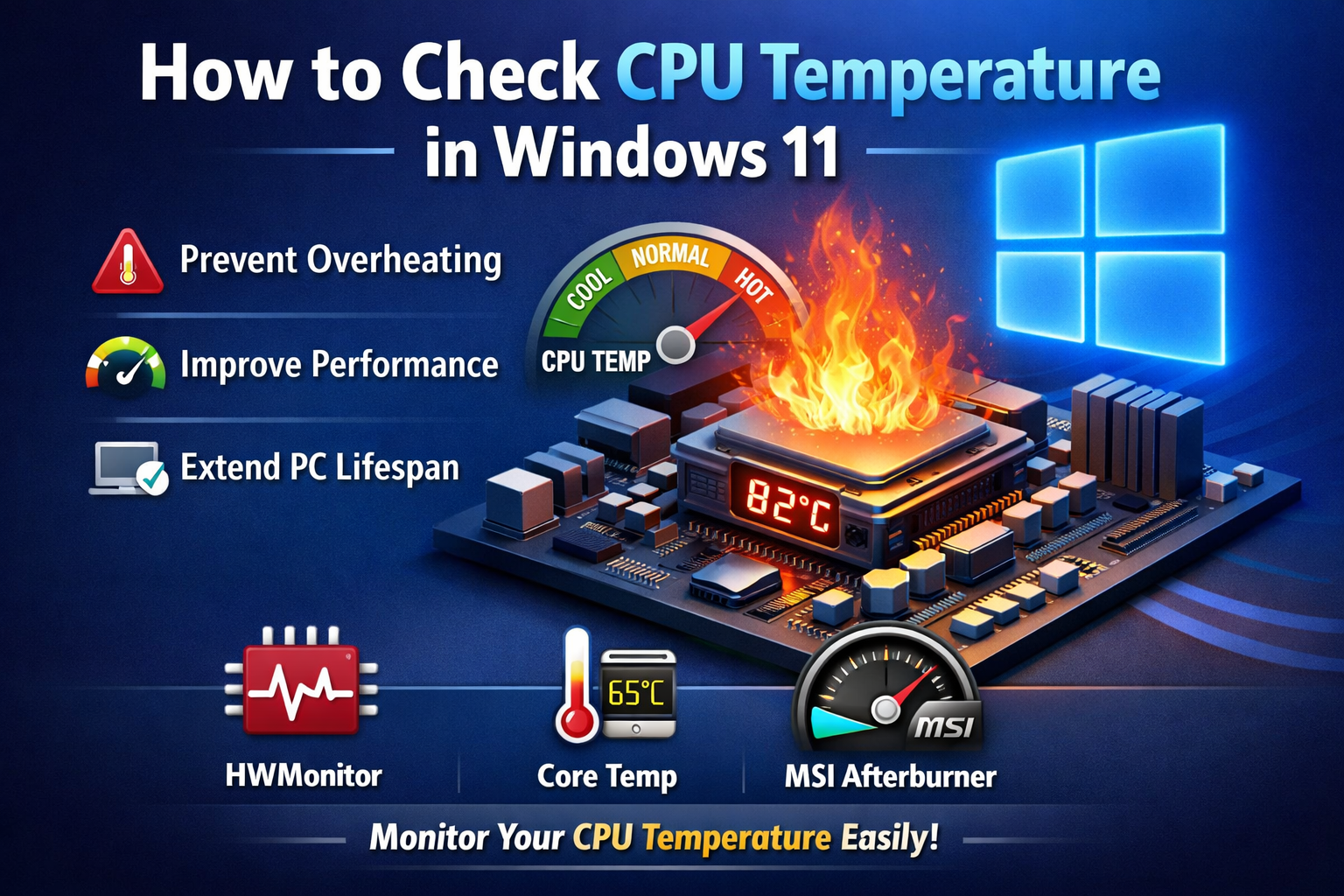
Monitoring your CPU temperature is one of the smartest things you can do to keep your computer running smoothly. Whether you’re gaming, working, or just browsing, keeping an eye on your processor heat can help prevent overheating, improve performance, and extend your PC’s lifespan.
In this guide, you’ll learn how to check CPU temperature in Windows 11, using both built-in methods and trusted third-party tools.
Why CPU Temperature Matters
Your CPU (Central Processing Unit) is the brain of your computer. When it gets too hot, several problems can occur:
- Slower performance (thermal throttling)
- Unexpected shutdowns
- Reduced hardware lifespan
- Potential system damage
Keeping your CPU within a safe temperature range ensures optimal performance and stability.
Ideal CPU Temperature Range
Before checking your CPU temperature, it’s helpful to know what’s considered normal:
- Idle temperature: 30°C – 45°C
- Normal usage: 50°C – 70°C
- Heavy load (gaming/editing): 70°C – 85°C
- Danger zone: Above 90°C
If your CPU temperature consistently exceeds 90°C, you should take action immediately.
Method 1: Check CPU Temperature via BIOS/UEFI
The most reliable way to check CPU temperature without installing software is through your system BIOS.
Steps:
- Restart your computer
- Press F2, F10, DEL, or ESC (depending on your device) during startup
- Enter BIOS/UEFI settings
- Navigate to Hardware Monitor or PC Health Status
- View your CPU temperature
👉 This method works directly through your system firmware but isn’t convenient for real-time monitoring inside Windows.
Method 2: Use Task Manager (Limited Info)
In Windows 11, Task Manager provides GPU temperature, but unfortunately, it does not show CPU temperature.
Steps:
- Press Ctrl + Shift + Esc
- Go to the Performance tab
- Click GPU
👉 While useful, you’ll still need other tools to monitor CPU heat.
Method 3: Use Third-Party CPU Temperature Monitoring Tools
For accurate, real-time tracking, third-party software is the best option. These tools are safe, lightweight, and widely used.
1. HWMonitor
HWMonitor is one of the most popular tools for checking CPU temperature.
Features:
- Real-time CPU temperature readings
- Displays voltage, fan speed, and power usage
- Easy-to-use interface
How to use:
- Download and install HWMonitor
- Open the application
- Look under the CPU section for temperature readings
2. Core Temp
Core Temp is designed specifically for CPU temperature monitoring.
Features:
- Shows temperature of each CPU core
- Lightweight and fast
- Supports most modern processors
3. MSI Afterburner
Originally built for GPU tuning, MSI Afterburner also monitors CPU temperature.
Features:
- On-screen display while gaming
- Advanced monitoring tools
- Customizable alerts
Method 4: Use Windows PowerShell (Advanced Users)
Windows doesn’t directly provide CPU temperature via PowerShell, but some system sensors may be accessible.
However, this method is not always reliable, so third-party tools are recommended for accurate results.
Signs Your CPU May Be Overheating
Even without checking temperature, your system may show warning signs:
- Loud or constantly running fans
- Sudden lag or performance drops
- Frequent crashes or shutdowns
- Laptop feels excessively hot
If you notice these issues, it’s time to monitor your CPU temperature immediately.
Tips to Reduce CPU Temperature
If your CPU is running hot, here are some simple ways to cool it down:
1. Clean Dust from Your PC
Dust buildup blocks airflow and traps heat. Clean your fans and vents regularly.
2. Improve Airflow
- Use additional case fans
- Keep your PC in a well-ventilated area
3. Replace Thermal Paste
Old thermal paste can dry out and lose effectiveness. Reapplying it can significantly lower temperatures.
4. Close Background Applications
Too many apps running at once can increase CPU load and heat.
5. Use a Cooling Pad (for laptops)
Cooling pads help improve airflow and reduce heat buildup.
Keywords
- how to check CPU temp Windows 11
- CPU temperature Windows 11
- check CPU temperature PC
- monitor CPU temperature Windows
- CPU overheating fix
- best CPU temp monitoring software
- Windows 11 CPU temp tools
- safe CPU temperature range
Frequently Asked Questions
Is it safe to check CPU temperature regularly?
Yes, monitoring your CPU temperature is completely safe and recommended.
Does Windows 11 have a built-in CPU temperature checker?
No, Windows 11 does not include a built-in CPU temperature monitor.
What is the best CPU temperature software?
Popular options include HWMonitor and Core Temp.
Conclusion
Knowing how to check CPU temperature in Windows 11 is essential for maintaining your computer’s health and performance. While Windows doesn’t provide a built-in solution, reliable third-party tools make it easy to monitor your system in real time.
By keeping your CPU temperature under control, you can avoid costly repairs, boost performance, and ensure your PC runs efficiently for years to come.


