
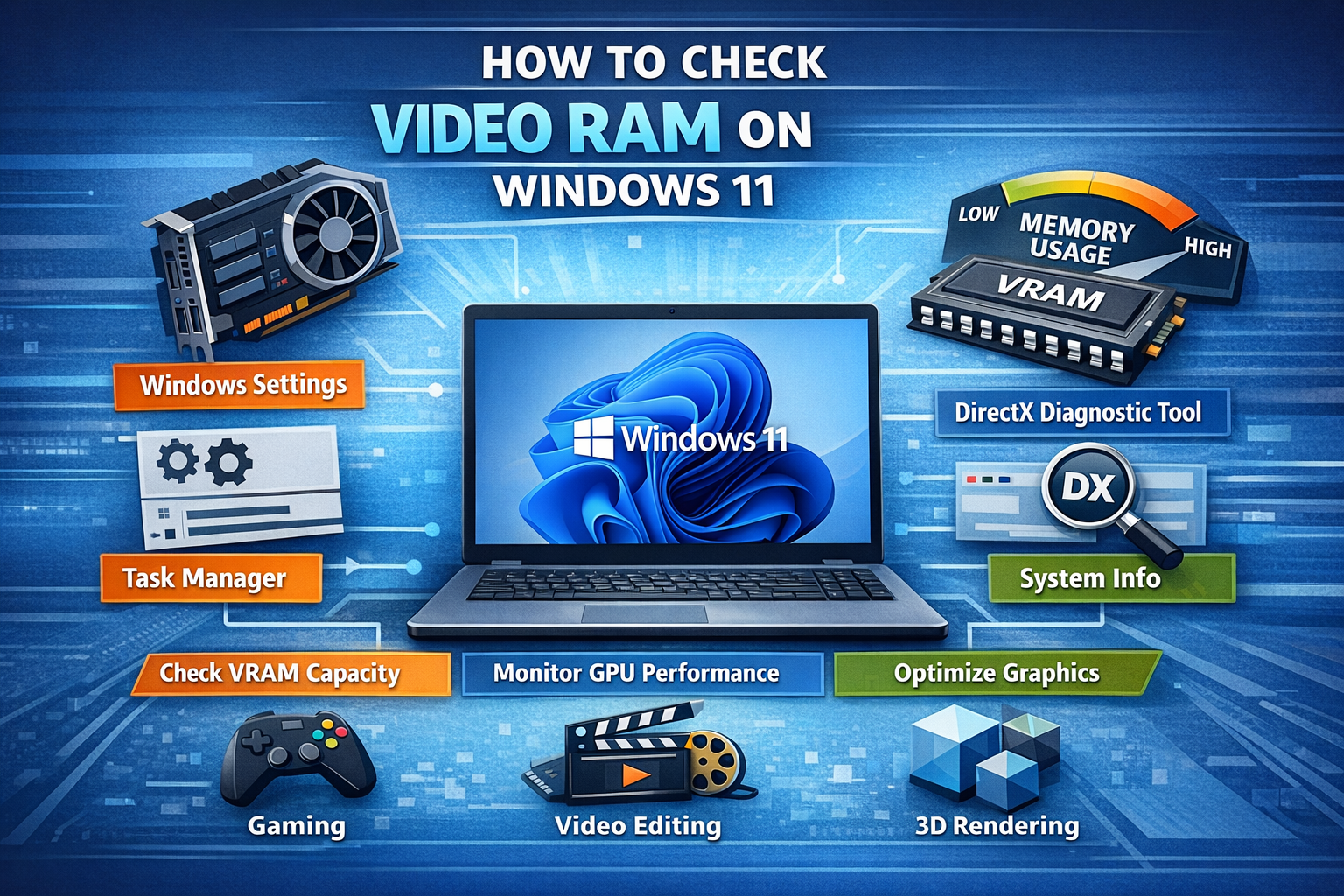
If you are using a Windows 11 computer for gaming, video editing, graphic design, or any task that involves heavy visuals, understanding your video RAM is very important. Video RAM, often called VRAM, plays a key role in how smoothly your system handles graphics. Whether you are troubleshooting performance issues or checking if your system meets the requirements of a game or software, knowing how to check your VRAM is essential.
In this guide, you will learn simple and effective ways to check video RAM on Windows 11. The steps are easy to follow, even if you are not very technical.
What is Video RAM
Video RAM is a type of memory used by your computer’s graphics processing unit. It stores image data that your system needs to display visuals on your screen. The more VRAM your system has, the better it can handle high resolution graphics, large textures, and demanding applications.
There are two main types of graphics setups in computers:
- Integrated graphics which share memory with your system RAM
Dedicated graphics which have their own VRAM - Knowing which one your system uses will help you understand your VRAM capacity better.
Why Checking VRAM is Important
Before jumping into the steps, here are a few reasons why checking your VRAM matters:
- It helps you know if your PC can run certain games or software
- It allows you to troubleshoot lag or poor graphics performance
- It helps in upgrading decisions if you plan to improve your system
- It ensures compatibility with design and editing tools
Now let’s go into the different methods you can use to check video RAM on Windows 11.
Method 1 Using Windows Settings
This is the easiest and most beginner friendly way to check your VRAM.
Step 1
Click on the Start menu and open Settings
Step 2
Go to System and then click on Display
Step 3
Scroll down and click on Advanced display
Step 4
Select Display adapter properties
Once the new window opens, you will see details about your graphics adapter. Look for the line labeled Dedicated Video Memory. That is your VRAM.
If you are using integrated graphics, you may see Shared System Memory instead. This means your system uses part of your RAM as VRAM.
Method 2 Using DirectX Diagnostic Tool
The DirectX Diagnostic Tool provides detailed information about your system, including your graphics memory.
Step 1
Press the Windows key and type dxdiag
Step 2
Click on the DirectX Diagnostic Tool
Step 3
Go to the Display tab
Here you will find information such as Display Memory, Dedicated Memory, and Shared Memory. The dedicated memory is your actual VRAM.
This method is useful because it shows a clear breakdown of how your graphics memory is allocated.
Method 3 Using Task Manager
Windows 11 Task Manager also provides information about your GPU and memory usage.
Step 1
Right click on the taskbar and select Task Manager
Step 2
Click on the Performance tab
Step 3
Select GPU from the list on the left
You will see details about your GPU, including dedicated and shared memory. This method is helpful if you want to monitor VRAM usage in real time while running applications.
Method 4 Using Device Manager
Another simple way to check your graphics information is through Device Manager.
Step 1
Press the Windows key and type Device Manager
Step 2
Expand Display adapters
Step 3
Right click on your graphics card and select Properties
Step 4
Go to the Details tab and select Hardware Ids or related properties
While this method may not directly show VRAM, it helps identify your GPU model, which you can then search online to find its VRAM capacity.
Method 5 Using System Information Tool
Windows also has a built in System Information tool that provides detailed hardware data.
Step 1
Press the Windows key and type System Information
Step 2
Open the application
Step 3
Navigate to Components and then Display
You will see detailed information about your graphics card, including adapter RAM which represents your VRAM.
Understanding the Results
When you check your VRAM, you might see different values such as:
Dedicated Video Memory
This is the actual VRAM available on your graphics card
Shared System Memory
This is borrowed from your system RAM
Total Available Graphics Memory
This is the sum of dedicated and shared memory
If you have a dedicated GPU, focus on the dedicated video memory. If you have integrated graphics, your system performance will depend more on your total RAM.
How Much VRAM Do You Need
The amount of VRAM you need depends on what you use your computer for.
For basic tasks like browsing and office work, 1 to 2 GB is enough
For gaming and moderate design work, 4 to 6 GB is recommended
For high end gaming, video editing, and 3D rendering, 8 GB or more is ideal
Knowing your VRAM helps you choose the right applications and avoid performance issues.
Tips to Improve Graphics Performance
If your VRAM is limited, here are some ways to improve performance:
Lower the resolution and graphics settings in games
Close background applications to free up memory
Update your graphics drivers regularly
Upgrade your RAM if you use integrated graphics
Consider upgrading to a dedicated graphics card
Common Issues and Fixes
Sometimes users may not see the expected VRAM value. Here are some common reasons:
Outdated drivers can cause incorrect readings
Integrated graphics may show shared memory instead of dedicated VRAM
System settings may limit available memory
To fix these issues, make sure your drivers are up to date and check your BIOS settings if necessary.
Conclusion
Checking video RAM on Windows 11 is a simple process that can help you understand your system’s graphics capabilities. Whether you use the Settings app, DirectX Diagnostic Tool, Task Manager, or System Information, each method gives you useful insights into your VRAM.
By knowing your VRAM, you can make better decisions about gaming, software usage, and system upgrades. It also helps you maintain smooth performance and avoid unnecessary issues.
Take a few minutes to check your VRAM today and ensure your system is ready for whatever tasks you throw at it.


