
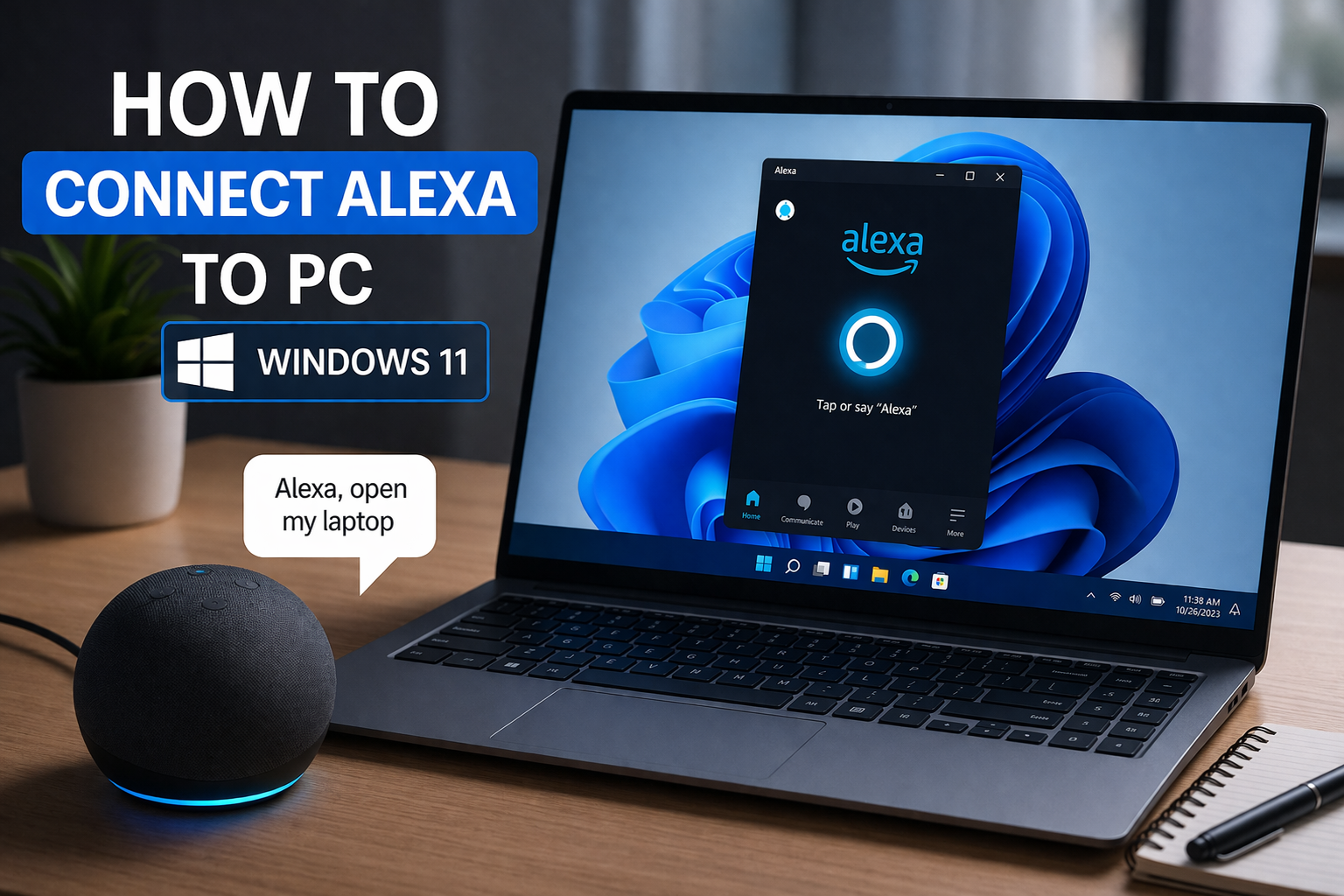
Smart assistants have become an essential part of modern technology, helping users control devices, manage tasks, and access information with simple voice commands. If you are using Windows 11, you can easily connect Alexa to your PC and enjoy hands free control, music playback, reminders, and more.
In this complete guide, you will learn how to connect Alexa to a Windows 11 PC step by step. The instructions are simple, beginner friendly, and designed to help you set everything up quickly without any confusion.
What is Alexa and How Does it Work
Alexa is a voice assistant developed by Amazon that allows you to interact with devices using voice commands. It can perform a wide range of tasks such as playing music, setting alarms, controlling smart home devices, and answering questions.
Alexa works through compatible devices like Echo speakers, smartphones, and computers. When connected to your Windows 11 PC, it allows you to control certain features directly from your computer.
Why Connect Alexa to Windows 11
Connecting Alexa to your PC can improve productivity and convenience in many ways.
You can control music and media without using your keyboard or mouse
You can set reminders and manage your schedule
You can control smart home devices directly from your PC
You can get quick answers, weather updates, and news
You can create a more hands free computing experience
With these benefits, Alexa becomes a powerful addition to your Windows 11 setup.
Requirements Before You Begin
Before connecting Alexa to your Windows 11 PC, make sure you have the following.
A Windows 11 computer with internet access
An Amazon account
The Alexa app installed on your PC
A working microphone and speakers or headset
Once these requirements are ready, you can proceed with the setup.
Method One Connect Alexa Using the Alexa App
The easiest way to connect Alexa to your Windows 11 PC is by using the official Alexa app.
Step One Download Alexa App
Open Microsoft Store on your PC
Search for Alexa and install the application
Step Two Launch the App
Open the Alexa app after installation
Sign in with your Amazon account
Step Three Set Up Alexa
Follow the on screen instructions to complete setup
Grant permissions for microphone and location access
Step Four Enable Hands Free Mode
Turn on hands free or wake word feature if available
This allows you to use voice commands without clicking anything
Once completed, Alexa will be ready to use on your Windows 11 PC.
Method Two Connect Alexa via Bluetooth
You can also connect your PC to an Alexa enabled device such as an Echo speaker using Bluetooth.
Step One Turn On Bluetooth on Windows 11
Open Settings and go to Bluetooth and devices
Turn on Bluetooth
Step Two Put Alexa Device in Pairing Mode
Say Alexa pair or Alexa Bluetooth pairing
Your device will start searching for nearby connections
Step Three Connect Your PC
On your PC, click Add device and select Bluetooth
Choose your Alexa device from the list
Once connected, your PC audio can play through the Alexa device, and you can use it as a speaker.
Method Three Use Alexa Through Web Browser
If you do not want to install the app, you can access Alexa through a web browser.
Open your browser and go to the Alexa web interface
Sign in with your Amazon account
Allow microphone access
This method gives you limited functionality but still allows basic voice commands and interactions.
How to Use Alexa on Windows 11

After connecting Alexa, you can start using it for various tasks.
Play music from supported services
Set reminders and alarms
Check weather updates
Control smart home devices
Ask general questions and get instant answers
To activate Alexa, simply say the wake word if hands free mode is enabled, or click the Alexa button in the app.
Tips for Better Alexa Performance
To get the best experience when using Alexa on your PC, consider the following tips.
Use a good quality microphone for clear voice recognition
Keep your Alexa app updated
Ensure a stable internet connection
Reduce background noise for better accuracy
Customize Alexa settings according to your preferences
These small improvements can make a big difference in performance.
Common Issues and How to Fix Them
Sometimes users may face problems when connecting Alexa to Windows 11. Here are common issues and solutions.
Alexa not responding
Check your microphone settings and internet connection
App not opening
Restart your PC or reinstall the Alexa app
Bluetooth connection problems
Make sure both devices are in pairing mode and within range
Voice commands not working
Ensure microphone permissions are enabled in Windows settings
Fixing these issues usually takes only a few minutes and helps restore normal functionality.
Is Alexa Safe to Use on PC
Alexa is designed with privacy and security in mind. You can manage your voice recordings, control permissions, and disable features when needed.
To stay safe, always download the Alexa app from official sources and keep your system updated.
Advantages of Using Alexa on Windows 11
Using Alexa on your PC offers several advantages.
Improved multitasking with voice control
Faster access to information
Better integration with smart home devices
Convenient hands free operation
Enhanced productivity
These features make Alexa a valuable tool for both work and personal use.
Conclusion
Connecting Alexa to a Windows 11 PC is a simple process that can greatly enhance your computing experience. Whether you use the Alexa app, Bluetooth connection, or web access, each method provides a convenient way to bring voice control to your desktop.
By following the steps in this guide, you can easily set up Alexa and start using it for daily tasks. With the right setup and a stable connection, Alexa can help you save time, stay organized, and enjoy a smarter way of using your computer.
Take a few minutes to connect Alexa to your Windows 11 PC today and experience the convenience of voice powered technology.


