
Introduction
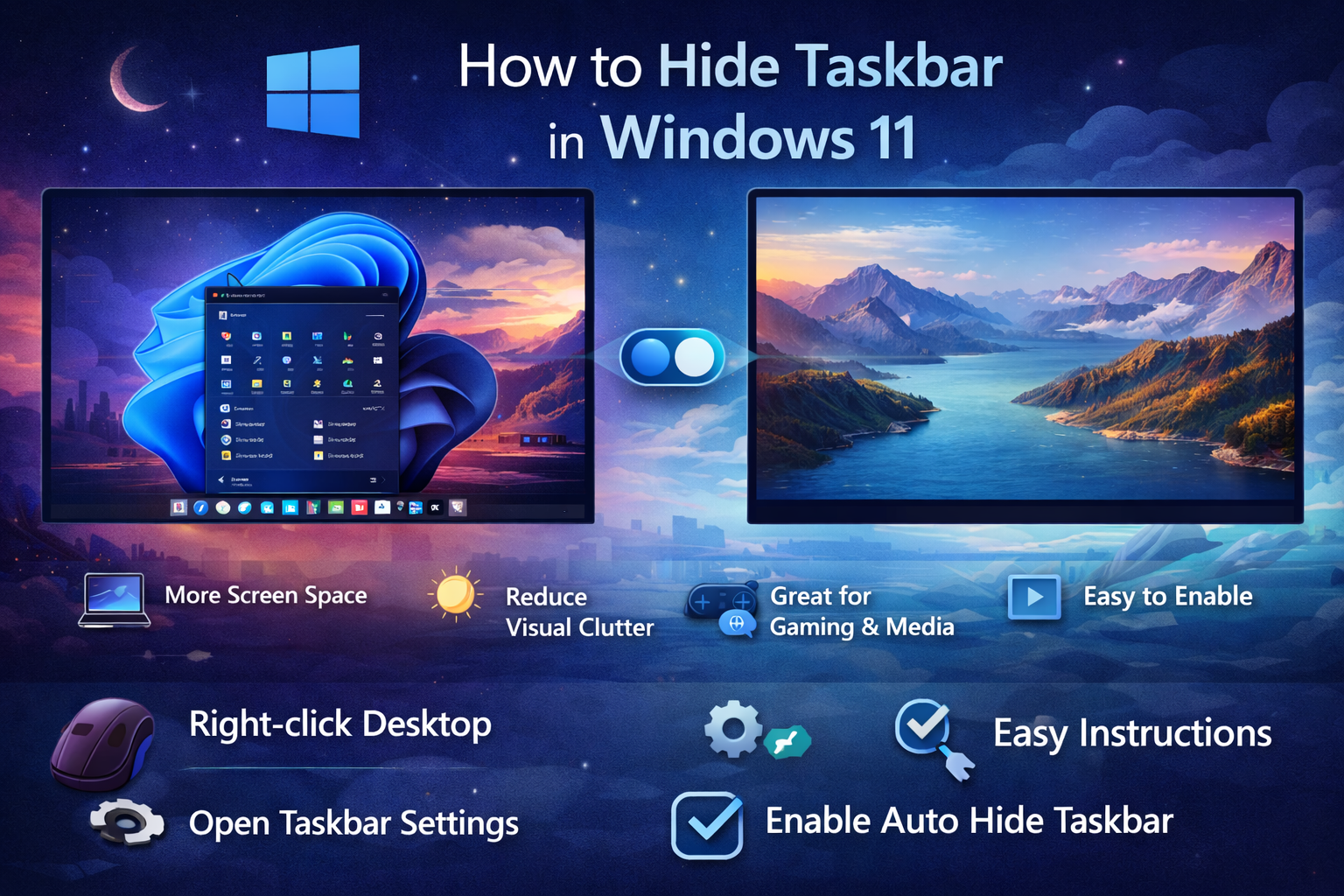
Windows 11 introduced a redesigned taskbar that is centered, clean, and modern. While many users appreciate the new look, others prefer a more minimal desktop experience with fewer distractions. One of the easiest ways to achieve this is by hiding the taskbar.
Hiding the taskbar can help you maximize screen space, improve focus, and create a cleaner workspace, especially if you use your computer for productivity, gaming, or content creation.
This guide will walk you through how to hide the taskbar in Windows 11, including automatic methods, customization options, and tips to get the best experience.
Why Hide the Taskbar
More Screen Space
Hiding the taskbar gives you extra room on your screen, which is useful for smaller laptops or when working with multiple windows.
Better Focus
Removing visual clutter helps you concentrate better on your work or entertainment.
Cleaner Desktop Look
A hidden taskbar creates a sleek and modern desktop appearance.
Ideal for Gaming and Media
Full screen experiences feel more immersive without a visible taskbar.
How to Automatically Hide the Taskbar in Windows 11
Step One
Right click anywhere on your desktop and select Taskbar settings.
Step Two
Scroll down and click on Taskbar behaviors.
Step Three
Check the box labeled Automatically hide the taskbar.
Once enabled, the taskbar will disappear and only reappear when you move your mouse to the bottom of the screen.
Alternative Method Using Settings
Step One
Open Settings from the Start menu.
Step Two
Click on Personalization.
Step Three
Select Taskbar.
Step Four
Expand Taskbar behaviors.
Step Five
Enable Automatically hide the taskbar.
This method achieves the same result but is useful if you prefer navigating through system settings.
How to Show the Taskbar Again
If you want to access the taskbar after hiding it, simply move your mouse cursor to the bottom of the screen. The taskbar will instantly reappear.
To make it permanently visible again, just uncheck the Automatically hide the taskbar option in settings.
Customizing Taskbar Behavior
Change Taskbar Alignment
You can move icons to the left instead of the center for a more traditional look.
Manage Taskbar Icons
Remove unnecessary apps from the taskbar to keep it clean even when visible.
Adjust Notifications
Limit notifications to avoid distractions when the taskbar appears.
Combine with Focus Settings
Use focus mode along with a hidden taskbar for maximum productivity.
Common Issues and Fixes
Taskbar Not Hiding Properly
Sometimes the taskbar may not hide due to active apps or notifications. Close background apps or clear notifications to fix this.
Taskbar Keeps Reappearing
Certain applications may force the taskbar to stay visible. Restarting Windows Explorer can resolve this issue.
System Glitches
If the taskbar behaves strangely, restart your computer or check for system updates.
Tips for a Better Experience
Use Keyboard Shortcuts
You can quickly open apps using keyboard shortcuts without needing the taskbar.
Keep Desktop Organized
A clean desktop complements a hidden taskbar and improves overall usability.
Enable Auto Hide Only When Needed
You can toggle the feature depending on your workflow.
Pair with Full Screen Mode
For videos or games, combine taskbar hiding with full screen mode for the best experience.
Is It Safe to Hide the Taskbar
Yes, hiding the taskbar is completely safe and does not affect system performance or functionality. It is simply a visual preference that can be changed anytime.
Benefits of Hiding the Taskbar
Hiding the taskbar improves focus, enhances aesthetics, and provides a distraction free workspace. It is especially useful for users who prefer a minimal and organized desktop environment.
Conclusion
Hiding the taskbar in Windows 11 is a simple yet effective way to improve your desktop experience. With just a few clicks, you can create a cleaner, more focused workspace that suits your needs.
Whether you are working, gaming, or browsing, this small adjustment can make a noticeable difference. Try it out and see how it enhances your productivity and overall computer experience.


