
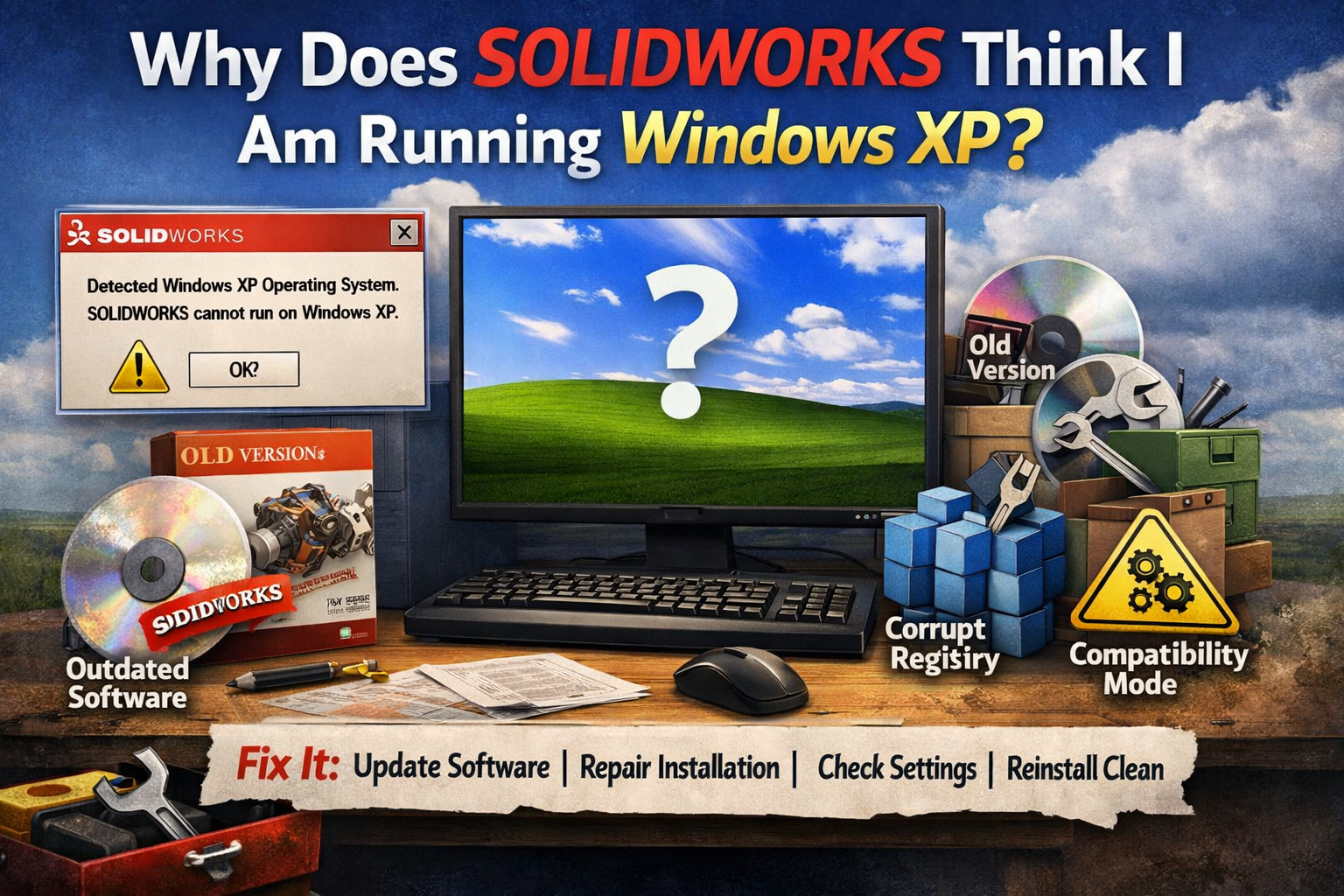
Why Does SOLIDWORKS Think I Am Running Windows XP?
Many users have reported a strange and frustrating issue: when trying to launch SOLIDWORKS, the program displays a warning or error suggesting that the system is running Windows XP, even though the computer is clearly running a newer version like Windows 10 or Windows 11. This can be alarming, especially if you rely on SOLIDWORKS for professional work, as it may prevent you from opening your files or using the software at all. Understanding why this happens and how to fix it can save hours of troubleshooting.
Understanding the Problem
SOLIDWORKS is a complex engineering software that relies heavily on Windows system information to determine compatibility. During launch, it checks your operating system version, available system resources, graphics drivers, and other critical settings. If any of these checks return unexpected information, SOLIDWORKS may misinterpret your operating system and display a warning.
When SOLIDWORKS incorrectly thinks you’re running Windows XP, it doesn’t necessarily mean your computer is actually outdated. Instead, the software is reading incorrect or incomplete system data. This misidentification can prevent the program from running correctly or even stop it from launching entirely.
Common Causes
1. Compatibility Mode
One of the most frequent causes of this problem is Windows Compatibility Mode. Windows allows older programs to run as if they were on legacy versions of the operating system. If SOLIDWORKS or its installer has been accidentally set to run in compatibility mode for Windows XP, the program will detect the OS incorrectly. This can happen manually or automatically if Windows attempted to fix previous launch issues.
To check this:
- Right-click the SOLIDWORKS shortcut or executable.
- Select Properties.
- Go to the Compatibility tab.
- Make sure that “Run this program in compatibility mode” is unchecked.
This simple adjustment often resolves the issue immediately.
2. Outdated SOLIDWORKS Version
Older versions of SOLIDWORKS were built for operating systems like Windows XP, Vista, or 7. If you are using one of these legacy releases on a modern OS, SOLIDWORKS may struggle to detect the system correctly. Updating to the latest service pack or version compatible with your OS can solve these detection problems.
3. Corrupted or Misconfigured Registry Entries
Windows stores operating system and application configuration in the registry. If the registry contains incorrect version information, SOLIDWORKS may read it and assume you are using an older OS. This can happen due to software installation errors, leftover files from previous OS upgrades, or registry cleaning utilities that accidentally remove critical entries.
4. Third-Party Software Interference
Some system utilities, virtual machines, or custom software wrappers can interfere with how SOLIDWORKS detects the operating system. Programs that modify system files or emulate older OS behavior can cause the software to misinterpret the environment. This is particularly common on machines running virtualization software like VMware or VirtualBox, or when certain antivirus programs impose restrictions.
5. Installation Issues
Sometimes, the SOLIDWORKS installation itself may be incomplete or corrupted. Missing files or incorrect settings can result in faulty compatibility checks. In such cases, repairing or reinstalling the software is usually necessary.
How to Fix It
Here is a step-by-step approach to resolving the problem:
Step 1: Disable Compatibility Mode
As mentioned above, the first thing to check is whether SOLIDWORKS is set to run in compatibility mode for an older version of Windows. Disabling it often resolves the issue immediately.
Step 2: Run as Administrator
Permissions can affect how applications read system information. Right-click the SOLIDWORKS executable and select Run as administrator. Running the program with elevated privileges can prevent misread system data.
Step 3: Update SOLIDWORKS
Make sure your SOLIDWORKS version supports your operating system. Check the official SOLIDWORKS system requirements for your release. Updating to the latest service pack or version ensures better compatibility with modern Windows versions, which often resolves OS detection problems.
Step 4: Repair SOLIDWORKS Installation
If updates don’t help, repairing the installation can fix missing or corrupted files:
- Open Control Panel > Programs and Features.
- Find SOLIDWORKS in the list.
- Select Change and then choose Repair.
- Follow the on-screen instructions.
This process keeps your settings intact while fixing critical files.
Step 5: Check Windows Updates
Ensure your Windows OS is fully updated. Missing updates, especially related to system libraries or .NET Framework, can cause SOLIDWORKS to misread the OS version. Go to Settings > Update & Security > Windows Update and install all pending updates.
Step 6: Clean Reinstall
If none of the above steps work, a clean reinstall may be necessary. Uninstall SOLIDWORKS completely, restart your computer, and install it fresh from the official installer. This removes corrupted settings and ensures a fully functional installation.
Step 7: Check Registry Values (Advanced Users)
For advanced users, you can verify the registry entries that store OS version information. Incorrect values in HKEY_LOCAL_MACHINE\SOFTWARE\Microsoft\Windows NT\CurrentVersion can cause misdetection. Be cautious: editing the registry incorrectly can damage your system. Always back up before making changes.
Step 8: Seek Support
If the problem persists after trying all these steps, it may be specific to your hardware or configuration. SOLIDWORKS technical support and community forums are excellent resources for finding solutions tailored to your setup. Often, other users have experienced similar issues and can provide guidance.
Tips to Prevent Future Problems
- Always keep SOLIDWORKS updated with the latest service packs.
- Avoid using registry cleaners that could remove critical system information.
- Make sure your graphics drivers are up-to-date, as SOLIDWORKS relies heavily on them.
- Avoid unnecessary virtual machine emulation unless required.
- Backup your system and SOLIDWORKS settings before upgrading your OS or software.
Final Thoughts
While it may sound alarming when SOLIDWORKS thinks your computer is running Windows XP, the cause is almost always a misconfiguration rather than a real OS problem. Most commonly, it is triggered by compatibility mode settings, outdated software, or minor installation issues. By carefully checking these areas, updating your software, and repairing your installation if needed, you can resolve the issue and get SOLIDWORKS running normally.
Remember, keeping both your operating system and SOLIDWORKS up to date is the best defense against compatibility errors. Regular updates not only fix bugs but also improve performance, stability, and compatibility with modern hardware.
With these steps, you should be able to restore proper OS detection and continue working efficiently in SOLIDWORKS without interruptions.


