
Introduction
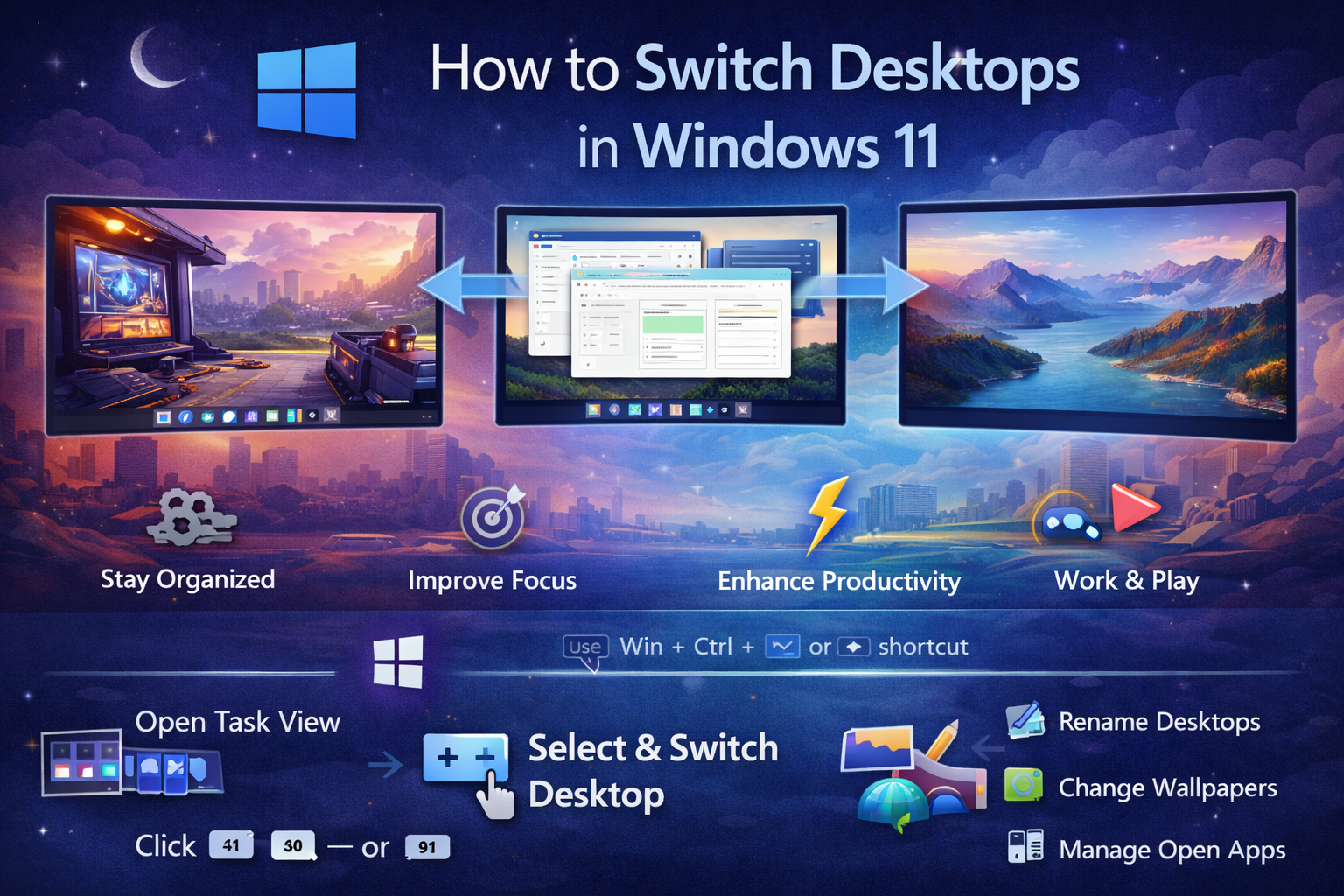
Windows 11 comes with powerful multitasking features designed to improve productivity and organization. One of the most useful yet often overlooked features is virtual desktops. This feature allows you to create multiple desktops on a single computer, helping you separate tasks, reduce clutter, and stay focused.
Whether you are working, studying, gaming, or browsing, switching between desktops in Windows 11 can make your workflow smoother and more efficient.
This guide will show you how to switch desktops in Windows 11, how to create and manage them, and how to get the most out of this feature.
What Are Virtual Desktops
Virtual desktops are separate workspace environments within your computer. Each desktop can have its own open apps, windows, and layout.
Instead of crowding everything into one screen, you can organize tasks across multiple desktops. For example, you can have one desktop for work, another for entertainment, and another for personal browsing.
Why Use Multiple Desktops
Better Organization
You can group related tasks together, making it easier to find what you need.
Increased Productivity
Switching between desktops is faster than minimizing and reopening apps repeatedly.
Reduced Clutter
A clean workspace helps you stay focused and reduces distractions.
Improved Multitasking
You can run different workflows simultaneously without interference.
How to Switch Desktops in Windows 11
Method One Using Task View
Step One
Click on the Task View icon on the taskbar. It looks like overlapping rectangles.
Step Two
You will see all your open desktops at the bottom of the screen.
Step Three
Click on the desktop you want to switch to.
This is the easiest method, especially for beginners.
Method Two Using Keyboard Shortcuts
Switch to Next Desktop
Press Windows key plus Ctrl plus Right Arrow
Switch to Previous Desktop
Press Windows key plus Ctrl plus Left Arrow
This method is faster and ideal for power users who prefer using the keyboard.
Method Three Using Touchpad Gestures
If you are using a laptop with a precision touchpad
Step One
Swipe left or right using four fingers on your touchpad
Step Two
The system will switch between desktops instantly
This method feels natural and is very convenient for quick navigation.
How to Create a New Desktop
Step One
Click on the Task View icon
Step Two
Select New Desktop
A new virtual desktop will be created instantly. You can switch to it and start opening apps separately from your main desktop.
How to Rename Desktops
Step One
Open Task View
Step Two
Right click on a desktop
Step Three
Select Rename and give it a meaningful name like Work, School, or Gaming
This helps you stay organized when using multiple desktops.
How to Move Apps Between Desktops
Step One
Open Task View
Step Two
Right click on the app window you want to move
Step Three
Select Move to and choose the target desktop
You can also drag and drop apps between desktops for quick organization.
How to Close a Desktop
Step One
Open Task View
Step Two
Hover over the desktop you want to close
Step Three
Click the close icon
Closing a desktop will not close your apps. Instead, they will move to another active desktop.
Customizing Your Desktops
Set Different Wallpapers
You can assign different backgrounds to each desktop to easily identify them.
Use Separate Workflows
Dedicate each desktop to a specific task such as coding, browsing, or entertainment.
Combine with Snap Layouts
Use Windows 11 snap layouts within each desktop for even better organization.
Common Issues and Fixes
Desktops Not Switching
Make sure Task View is enabled and your keyboard shortcuts are working properly.
Missing Task View Icon
Right click on the taskbar, go to taskbar settings, and enable Task View.
Gesture Not Working
Check your touchpad settings and ensure gesture controls are turned on.
Performance Issues
Too many open desktops with heavy apps can slow down your system. Close unused desktops if needed.
Tips for Better Productivity
Limit the Number of Desktops
Avoid creating too many desktops as it can become confusing.
Use Keyboard Shortcuts
They are the fastest way to switch between desktops.
Name Your Desktops Clearly
Use simple names to quickly identify each workspace.
Keep Each Desktop Focused
Assign one purpose per desktop to avoid mixing tasks.
Is It Safe to Use Virtual Desktops
Yes, virtual desktops are a built in feature of Windows 11 and completely safe to use. They do not affect system performance significantly when used properly.
Benefits of Switching Desktops
Switching desktops helps you stay organized, improves focus, and enhances multitasking. It is especially useful for professionals, students, and anyone who works with multiple applications at once.
Conclusion
Switching desktops in Windows 11 is a simple yet powerful way to improve your workflow. With just a few clicks or keyboard shortcuts, you can move between different workspaces effortlessly.
By using virtual desktops effectively, you can create a cleaner, more organized, and more productive computing environment. Once you get used to it, you may find it hard to go back to using just a single desktop.


